What Is EXIF Data? What Your Photos Reveal
Quick answer
EXIF data (Exchangeable Image File Format) is technical information embedded inside a digital photo when you take it, such as capture date and time, camera or iPhone model, lens, shutter speed, ISO, and GPS coordinates. Together with TIFF and IPTC tags, it forms photo metadata—the hidden record that travels with an image file unless you edit or remove it.
1. What is photo metadata? Four common tag groups
People often say “EXIF data” to mean everything stored inside a photo file, though an iPhone image can hold four distinct metadata blocks:
- EXIF: Capture date and time, time zone offset, aperture, shutter speed, ISO, focal length, flash, and lens model.
- GPS: Latitude, longitude, altitude, and compass direction recorded when Camera has Location Services access.
- TIFF: Device make and model, image orientation, resolution, and software or firmware identifiers.
- IPTC: Editorial and ownership fields such as caption, author/byline, copyright notice, city, country, and keywords.
2. How to check EXIF and find where a photo was taken on iPhone
You do not need an extra tool to view basic photo metadata on iPhone. Apple’s built-in Photos app shows a summary directly below any picture:
- Open the Photos app on your iPhone and tap the photo you want to inspect.
- Swipe up on the photo or tap the Info button (i).
- Check the capture date and time, the device name, camera details (such as lens, shutter speed, and file size), and the map showing where the photo was taken. Tap the map link to open that place in Maps, or tap Adjust to change the date, time, or location.
To browse all pictures that contain embedded GPS coordinates in Apple Photos, open Collections and check the Map collection under Pinned.
3. Do screenshots have metadata?
Screenshots taken on an iPhone do not come from the camera sensor, so they typically do not contain camera EXIF fields such as aperture, shutter speed, focal length, lens model, or GPS coordinates.
That does not mean every screenshot is completely blank. A screenshot file can still include basic file properties like pixel dimensions, file size, color profile, and creation timestamps. Likewise, images saved from websites or messaging apps often have original camera EXIF stripped during upload or download—so if a photo shows no EXIF data, it was either created without camera tags or cleaned by a platform along the way.
4. Inspect every field clearly with Exif Metadata
Apple’s Info panel surfaces headline specs, but it hides raw EXIF, TIFF, and IPTC tags and does not work directly on image files sitting in your Files folders. Exif Metadata lets you inspect, copy, edit, or clean full metadata directly on your iPhone without uploading your photos.
- Open Exif Metadata and pick any picture from the Photos grid, or tap the plus (+) button and choose Import from Files to inspect an image stored in iCloud Drive or On My iPhone.
- Read the “What this photo reveals” summary card to see at a glance where, when, and with which device the photo was taken.
- Scroll to view the shooting location on a map and browse full EXIF, GPS, TIFF, and IPTC fields. Tap any value to copy it, and swipe left or right to inspect adjacent photos.
- Need to correct a wrong timestamp, add a map pin, or strip details before posting? Tap Modify Metadata to edit fields or tap Safe Share to export a clean copy.
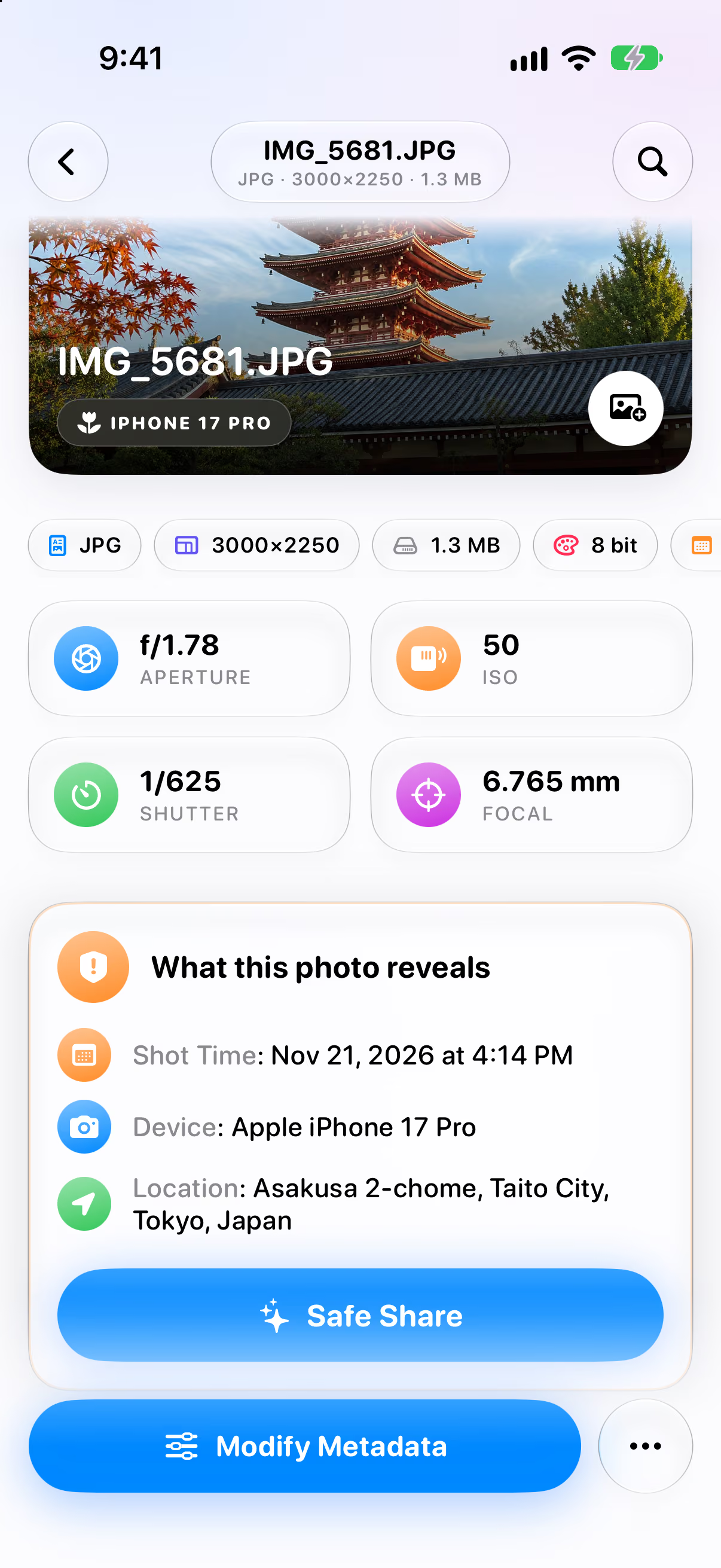
See the full EXIF, GPS, TIFF, and IPTC record on iPhone
Check what a photo reveals at a glance, copy any tag with a tap, or edit and strip sensitive details on device.
Common questions
Can someone find where a photo was taken from EXIF data?
If the photo still has embedded GPS latitude and longitude coordinates, anyone who receives the original file can read those coordinates and locate the shooting spot on a map. Removing GPS metadata before sharing prevents those coordinates from traveling with the copy.
Do screenshots taken on iPhone include GPS location?
No. Standard iPhone screenshots are screen captures rather than camera captures, so they do not record camera lens data or GPS coordinates, though basic file attributes like dimensions and timestamps may still exist.
Does Exif Metadata upload my photos when reading EXIF data?
No. Exif Metadata reads, edits, and removes photo metadata directly on your iPhone or iPad and does not upload your photos.
Apple Support references for iPhone steps
Built-in iPhone steps in this guide were verified against Apple’s official documentation:
- View photo date, device, camera metadata, and location in Photos:See photo and video information on iPhone — Apple Support
- Review photos with embedded GPS location on iPhone:Manage location metadata in Photos — Apple Personal Safety User Guide